WhatsApp Business Message Templates for Sellers: 25 Ready-to-Use Replies
Stop typing the same replies all day. Here are ready-to-use WhatsApp Business message templates for every stage of an order, plus how to save them as quick replies and sort chats with labels.

By Khairul Azahar Sharriffuddin · Published
Key takeaways
- Write your WhatsApp Business message templates once and save them as quick replies, so every customer gets a clear, consistent answer in seconds.
- Use the app's automatic greeting and away messages for first contact and after hours, and point both to your link-in-bio page for prices and ordering.
- Cover every order stage: confirmation, payment reminder, payment received, delivery update, follow-up and review request.
- Sort chats with labels (being rolled out as lists in some versions) so no paid order waits for a reply.
- Keep templates short, personal and easy to edit, and message customers only when you have a real reason.
In this guide
If you sell on WhatsApp, you probably type the same messages every day: "Hi, thanks for your message", "Total is RM...", "Payment received", "Your parcel is on the way". Good WhatsApp Business message templates let you send those answers in seconds, sound professional every time and never forget a step. This guide gives you 25 ready-to-use templates for each stage of an order, and shows how to save them as quick replies and organise chats with labels in the free WhatsApp Business app.
If you are still setting up WhatsApp for selling, start with our guide to selling on WhatsApp from Instagram and TikTok, which covers the business profile, catalogue and order links. This post picks up from there: what to actually say.
Why message templates help sellers
- Speed. Customers often message more than one seller. A clear reply within minutes wins more orders than a perfect reply hours later.
- Consistency. Every customer gets the same prices, payment details and delivery rules, so there are fewer mistakes and arguments.
- Fewer missed steps. A template for each stage reminds you to confirm details, ask for payment and follow up.
- A calmer inbox. You spend less time typing and more time making, packing and delivering.
Templates are not about sounding like a robot. Think of them as a first draft: tap, add the customer's name or order details, and send.
The WhatsApp Business tools you will use
The free WhatsApp Business app has three features that turn templates into a system. Features and menu names change over time and can vary by country and app version, so check the official help pages linked below if something looks different on your phone.
| Tool | What it does | Sent automatically? |
|---|---|---|
| Greeting message | Welcomes customers on first contact or after 14 days of no messages | Yes |
| Away message | Replies when you are away, on a schedule you choose | Yes |
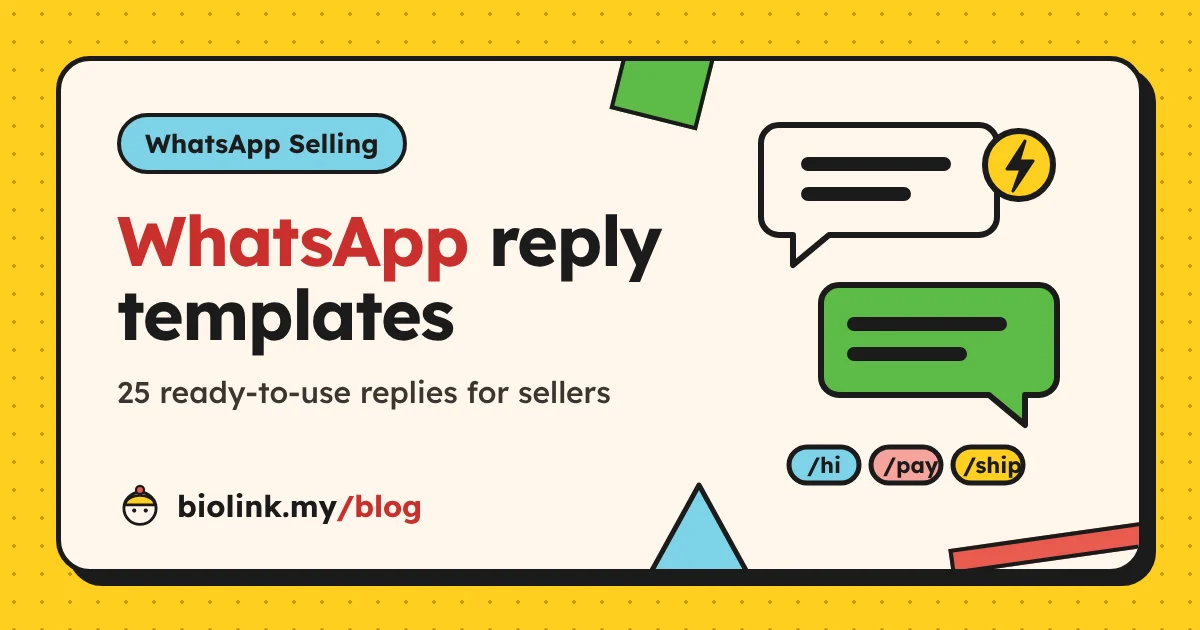
| Quick replies | Saved messages you insert with a "/" shortcut | No, you send them |
| Labels (lists) | Coloured tags to sort chats by order stage | Not applicable |
Quick replies
According to WhatsApp's guide on how to use quick replies, you create them from the Tools tab under Quick replies, give each one a keyboard shortcut, and insert it in a chat by typing "/" in the message field. The help page lists a maximum of 50 stored quick replies, and quick replies can include images and videos on the phone app. The app also creates some default replies from your business profile, such as your hours and address, so fill in your profile completely.
Greeting and away messages
WhatsApp's guide on greeting messages says they are sent automatically when a customer messages you for the first time, or after 14 days of inactivity in that chat. You can choose who receives them: everyone, everyone not in your address book, everyone except selected contacts, or only selected contacts.
The guide on away messages describes three schedules: always send, a custom schedule, or outside business hours (which needs business hours in your profile). Both features need your phone to have an internet connection to send.
Labels
Labels let you tag a whole chat with a name and colour, such as "New order" or "Paid". WhatsApp's guide on how to use labels notes that labels are being replaced by lists and rolled out gradually, so you may see either name; it mentions up to 20 labels. We cover a label system for orders further down.
Tip: Name your quick-reply shortcuts after the stage, not the words: "greet", "price", "pay", "paid", "ship", "review". You will remember them faster, and they sort neatly in the list.
Greeting message templates
Your greeting is the first thing a new customer sees. It should welcome them, set expectations and point them to the fastest way to order. Replace the words in curly brackets.
1. Simple welcome with a link
"Hi, thanks for messaging {Shop name}! You can see our full menu and prices here: {your page link}. Tell us what you would like and we will confirm your order."
2. Welcome with order format
"Hi and welcome to {Shop name}! To order, send us: 1) item and quantity, 2) delivery or pick-up, 3) your area. Prices and photos are here: {your page link}."
3. Welcome for pre-orders
"Hi! Thanks for reaching out. This week's pre-orders close on {day} at {time}. See what is available and order in one tap here: {your page link}."
Tip: A link-in-bio page with a WhatsApp cart does the hard part of your greeting for you. On biolink.my, customers pick items and quantities on your page, then the order arrives in WhatsApp already written, with each item, the amounts and the total.
Away message templates
An away message turns "no reply" into "we will reply soon". Say when you are back and give the customer something useful to do meanwhile.
4. Outside business hours
"Thanks for your message! We are closed right now and reply from {time} to {time}, {days}. You can browse prices and place your order anytime here: {your page link}. We will confirm it first thing."
5. Busy making orders
"Hi! We are busy in the kitchen and will reply within {number} hours. If you are ordering, send your items and area now so we can confirm faster."
6. Holiday or break
"Thanks for messaging {Shop name}. We are on a break from {date} to {date} and will reply when we are back. Orders for {date} onwards are open here: {your page link}."
Important: Remember to switch off a holiday away message when you return. A custom schedule with an end date does this for you.
Order and enquiry templates
These are quick replies you send by hand, with the details filled in.
7. Price list
"Here are our prices: {item} {price}, {item} {price}, {item} {price}. Delivery is {fee} to {area}, free from {amount}. Full menu with photos: {your page link}."
8. Delivery fees and areas
"We deliver to {areas} for {fee}, and to {other areas} for {fee}. Free delivery for orders from {amount}. Self pick-up is free at {place}, {times}."
9. Out of stock
"Sorry, {item} is sold out for this batch. The next batch is on {date}. Would you like me to save one for you, or try {alternative} instead?"
10. Order confirmation
"Thank you, {name}! Your order: {items and quantities}. Total {amount}, including delivery to {area}. Delivery or pick-up on {date}. Please check the details and reply OK to confirm."
11. Custom order details
"Happy to make this for you! Could you tell me: 1) the date you need it, 2) size or quantity, 3) any colours, flavours or text? I will send the price and timing after that."
Payment templates
Money messages need extra care: be clear, be polite, and always repeat the total.
12. Payment details
"Your total is {amount}. You can pay by: DuitNow QR or transfer to {account name}, {bank}, {account number}, or by card through this link: {payment link}. Please send the receipt here after paying."
13. Payment reminder
"Hi {name}, a friendly reminder about your order of {items}, total {amount}. We are holding it until {day, time}. Payment details are above, or let me know if you have changed your mind. No problem at all!"
14. Payment received
"Payment of {amount} received, thank you {name}! Your order is confirmed for {date}. I will message you when it is on the way."
15. Payment not found yet
"Thanks for the receipt! I cannot see the payment in our account yet. Transfers can take a little time, so I will check again shortly and confirm here."
Showing your payment options before the chat saves you from sending them every time. On a biolink.my page you can show your DuitNow QR in a tip-jar style QR block and add a payment link to your own provider. biolink.my never handles the money: customers pay you directly. DuitNow is familiar to many Malaysian buyers, which makes it a common choice for chat orders.
Important: Only confirm and ship after you see the payment in your own bank or payment account. A screenshot alone is not proof of payment.
Delivery update templates
Delivery messages stop "where is my order?" chats before they start.
16. Preparing the order
"Your order is being prepared today and will go out on {date}. I will send the tracking number once it is shipped."
17. Shipped with tracking
"Your parcel is on the way! Courier: {courier}. Tracking number: {number}. Track it here: {tracking link}. Usual delivery time to {area} is {days}."
18. Out for delivery or ready for pick-up
"Good news, {name}! Your order will arrive today between {time} and {time}." Or: "Your order is ready for pick-up at {place} from {time}. Please bring your order name."
19. Delay notice
"Sorry, {name}, your order will be a little late because of {reason}. New delivery date: {date}. Thank you for your patience, and let me know if you need it sooner."
Follow-up and review request templates
The sale is not finished when the parcel arrives. A short follow-up checks the customer is happy and makes the next order more likely. For a fuller system, read our guide to getting repeat customers online.
20. Did it arrive well?
"Hi {name}, just checking your order arrived safely and everything was good. If anything is not right, tell me and I will sort it out."
21. Review or photo request
"So glad you enjoyed it! Would you mind sharing a short review or a photo? It really helps a small business like ours. With your permission, we may share it on our page."
22. Restock or next batch (only for customers who asked)
"Hi {name}, you asked to hear about the next batch of {item}. It is open now, with {number} slots this week: {your page link}."
23. Thank you for ordering again
"Welcome back, {name}! Thank you for ordering again. Your usual {item}? I can confirm it right away."
Handling problems politely
24. Wrong or damaged item
"I am really sorry about that, {name}. Could you send a photo of the item and the packaging? I will replace it or refund you, whichever you prefer."
25. Price or discount request
"Thank you for asking! Our prices are fixed so we can keep quality the same for everyone, but orders from {amount} get free delivery, and our {bundle name} saves you {amount}."
Tip: Keep a copy of your templates outside WhatsApp, for example in a notes app. WhatsApp's help page warns that a deleted quick reply cannot be recovered.
Organise orders with labels
Templates work best with a simple label system, so you can see every order's stage at a glance. Here is a set that matches the templates above.
| Label | When to apply it | Template to send |
|---|---|---|
| New enquiry | Customer asked a question | Price list, delivery fees |
| New order | Items and area received | Order confirmation |
| Waiting for payment | Order confirmed, not paid | Payment details, reminder |
| Paid | Payment seen in your account | Payment received |
| Shipped | Parcel sent or ready | Shipped with tracking |
| Follow up | A few days after delivery | Did it arrive well? Review request |
Check "Waiting for payment" and "Paid" every morning. A paid order that nobody replied to is the fastest way to lose a customer.
How to write your own templates
The 25 templates above cover most orders, but your products will have their own questions. When you write new ones:
- One message, one job. Confirm the order or send payment details, not both plus a promotion.
- Put the important part first. Totals, dates and links should be easy to spot on a phone.
- Leave room to personalise. Use the customer's name and order details every time.
- Keep the tone you use in person. Friendly and clear beats formal and long.
- Write in the customer's language. Many Malaysian sellers keep an English and a Bahasa Melayu version of each template.
- Avoid formatting that breaks. Long lists of emoji, symbols and capital letters are hard to read and look like spam.
| Situation | Weak | Strong |
|---|---|---|
| Price question | "PM" | "RM18 per jar, menu here: {link}" |
| Payment | "Bank in ya" | "Total RM54. DuitNow QR or {bank, account}" |
| Delay | "Sorry late" | "New date {date}, because of {reason}" |
| Review | "Pls review!!!" | "Would you mind sharing a short review?" |
Message customers respectfully
Templates make it easy to message many people, which also makes it easy to annoy them. A few rules keep you on the right side of your customers:
- Reply to what they asked first. Do not answer a question with a promotion.
- Send follow-ups and offers only to customers who agreed to hear from you, and stop when they ask.
- Use broadcasts and marketing messages sparingly. WhatsApp offers paid marketing messages in some countries; its page about marketing messages explains that they are charged per delivered message and only available in limited countries at the time of writing.
- Never ask for passwords or one-time codes, and warn customers that you will never ask for them either.
Make templates do less work with your link in bio
The best template is the one you never need to send. If your page already shows products, prices, delivery rules and payment options, many questions disappear before the chat starts. A biolink.my page can do much of that for free:
- A WhatsApp shop with photos, prices and a short note for delivery rules, sending complete orders to your chat
- An action bar at the bottom of the screen with WhatsApp, Call, Order or Share buttons
- A countdown for pre-order cut-offs, so your "orders close on Friday" template has a visible deadline
- A lead form for customers who want to hear about the next batch
Your greeting and away messages can then point to that one link. If you have not set it up yet, follow how to set up your biolink.my page, or browse more guides in WhatsApp Selling.
biolink.my is free for everyone, with no paid plans and no commission on your WhatsApp orders. It is paid for by brand partners and sponsors through one small card labelled "Sponsored" at the bottom of public pages, never between your links or products. See everything included on the features page.
Conclusion
Good WhatsApp Business message templates make you faster, clearer and more reliable without making you sound like a machine. Set up a greeting and an away message that point to your page, save the order, payment, delivery and follow-up templates as quick replies, sort chats with labels, and review your templates whenever customers keep asking the same new question.
Frequently asked questions
How do I create message templates in WhatsApp Business?
In the WhatsApp Business app, saved replies are called quick replies. At the time of writing you create them from the Tools tab under Quick replies, give each one a shortcut, and send it in a chat by typing "/" and picking it. WhatsApp's guide on how to use quick replies has the current steps.
How many quick replies can I save in WhatsApp Business?
WhatsApp's help centre states a maximum of 50 stored quick replies at the time of writing. That is plenty for the templates in this guide, with room to spare for product-specific answers.
What is the difference between a greeting message and an away message?
A greeting message is sent automatically when a customer messages you for the first time, or after 14 days without messages in that chat. An away message is sent automatically when you are away, on a schedule you choose, such as outside business hours. Both are set up from the Tools tab in the WhatsApp Business app.
Are WhatsApp Business message templates the same as API templates?
No. This guide is about the free WhatsApp Business app and its quick replies. "Message templates" in the WhatsApp Business Platform (the API used by larger companies) are a separate system with their own approval and pricing rules.
How do I send a polite payment reminder on WhatsApp?
Keep it short and friendly, restate the order and the total, give the payment options again, and mention when you will release the slot or stock. Send one reminder, and one more later if needed; then let the order go. There is a ready-to-use version in the payment section above.
Can I send promotions to all my customers on WhatsApp?
Only to customers who have agreed to hear from you, and not too often. WhatsApp also offers paid marketing messages in some countries; its help page about marketing messages explains how they work and that availability is limited at the time of writing.