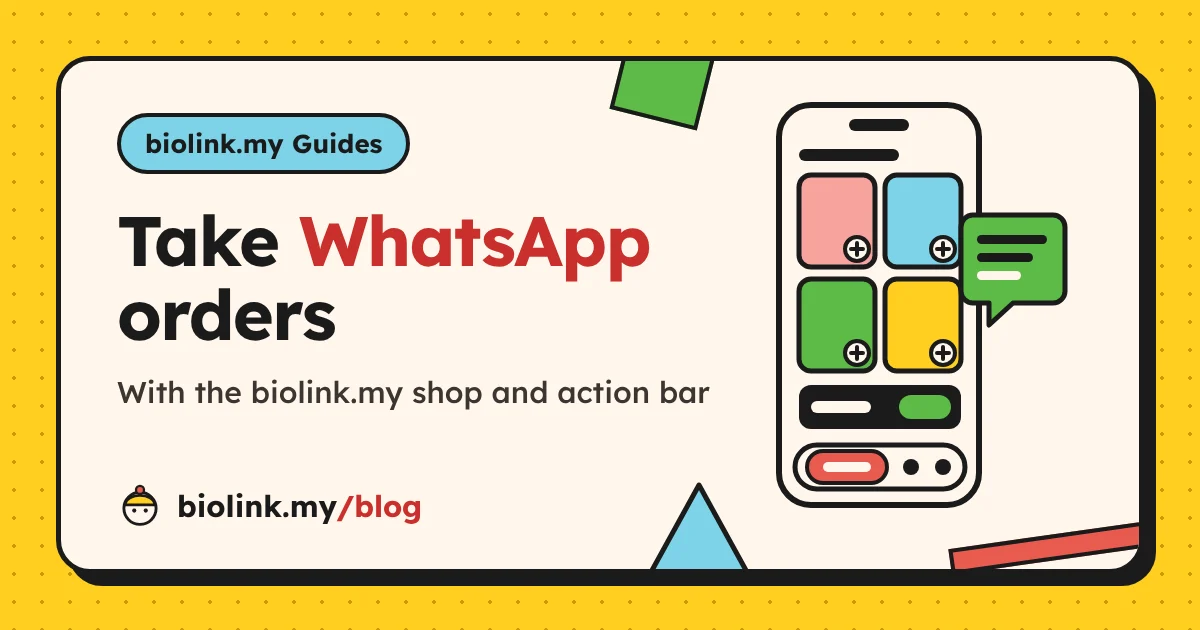
How to Take WhatsApp Orders With the biolink.my Shop and Action Bar
A hands-on guide to the biolink.my WhatsApp shop: adding the shop block, listing products in Shop, what the cart message looks like, the Order action in the action bar, Floating vs Docked, and the cart log in Leads.

By Khairul Azahar Sharriffuddin · Published
Key takeaways
- To take WhatsApp orders on biolink.my, add a WhatsApp shop block in the Editor, then list products and set your number in Shop.
- Visitors tap + on each product, and one tap on the WhatsApp button opens a chat with the full order, line totals and grand total already written.
- Switch on the action bar and add Order (your shop) so a one-tap Order button follows visitors down the page.
- Every cart sent from your live page is logged in Shop → Recent carts and Leads → WhatsApp carts, with a CSV export.
- biolink.my never touches payment: you confirm the order, delivery and payment in your own chat.
In this guide
If customers already message you to order, you know the routine: "Hi, how much?", "Is this still available?", "Can I get two?", and ten messages later you finally have the order. This guide shows you how to take WhatsApp orders with the biolink.my shop and action bar, so the first message you receive is the complete order.
Everything here matches the app as it works today, screen by screen. It assumes you already have a page; if not, follow how to set up your biolink.my page first, then come back. For the bigger picture of selling on WhatsApp (business profiles, Stories, order routines), read how to sell on WhatsApp from Instagram and TikTok.
How WhatsApp ordering on biolink.my works
The flow has four parts, and you control each one from the dashboard:
- The shop block on your page lists your products with prices and photos.
- The cart: visitors tap + on what they want, and the shop adds up the total.
- The WhatsApp button opens a chat with you, with the whole order already typed.
- The cart log in your dashboard records every cart sent from your live page.
Under the hood, the button is a standard WhatsApp click to chat link (wa.me) with the order as the prefilled message. Nothing is installed, there is no checkout and no account for your customers. They just need WhatsApp.
Good to know: biolink.my never handles money. You confirm stock, delivery and payment in your own chat, exactly as you do now, just with a complete order to start from.
Step 1: Add a WhatsApp shop block
You can create the shop in two ways:
- In the Editor, press Add block (or the yellow + button) and choose WhatsApp shop, described as "Products + cart sent to WhatsApp".
- In Shop, press Add product. If your page has no shop yet, adding your first product creates the shop block for you.
If you chose Seller during onboarding, your page already starts with a WhatsApp shop holding a sample product. Replace it with your own.
The shop block's settings
Open the shop block in the Editor to set:
- Title: the heading above your products. New shops start with "Order now"; something specific like "This week's menu" or "Ready stock" works better.
- WhatsApp number: digits only, with the country code. A new shop starts with just
60, so replace it with your full number, for example60123456789. - Currency: prices are in RM (MYR).
- Note under the cart (optional, up to 160 characters): pickup or delivery details, order cut-off times or a payment note.
- Manage products in Shop: products are edited only on the Shop page, so this button takes you there.
Important: Send a test message to your own number from another phone before you publish. A wrong digit in the WhatsApp number means orders go to a stranger, or nowhere.
Step 2: Add your products in Shop
Open Shop in the sidebar. This is the only place where products are created and edited.
Press Add product and fill in:
- Name (up to 60 characters): what customers would type when they order, such as "Kuih lapis (box of 10)"
- Price (RM): the price for one unit
- Description (optional): a short line about size, flavour or what is included
- Placeholder colour: shown until you add a photo
After adding a product you can upload a photo on its row. Photos are compressed in your browser before upload, so a picture straight from your phone is fine. You can edit any product's name, price and description directly in the list, and remove it with the bin button. Each shop block holds up to 50 products.
| Field | Good example | Avoid |
|---|---|---|
| Name | Brownies (box of 6) | Item 1 |
| Price | 25.00 | Leaving it as a "PM me" |
| Description | Fudgy, no nuts, keeps 5 days | Long paragraphs |
| Photo | One product, plain background | Busy group shots |
If you sell variants, list each popular one as its own product ("Large" and "Small") so the order message is unambiguous. Our guide to selling on social media without a website has more on naming, photos and handling variants.
WhatsApp ordering settings
On the right of the Shop page (below the products on a phone), WhatsApp ordering repeats the two settings that matter most: the WhatsApp number and the Note under the cart. They are the same fields as in the Editor, so change them in whichever place is handier.
More than one shop
You can add more than one WhatsApp shop block, for example "Cakes" and "Cookies" in separate sections. When your page has several, the Shop page shows a Shop block picker so you choose which one you are editing. Each shop has its own products, number and note.
Step 3: What your customer sees and sends
On your public page, each product shows its photo (or colour), name, description and price, with a round + button. Tapping + adds one and turns the button into a stepper with − and +, up to 99 of each item. Below the products, a cart line shows the number of items and the total, plus your note.
As soon as there is something in the cart, a WhatsApp button appears. Depending on the template it reads Send on WhatsApp or Order on WhatsApp. One tap opens WhatsApp with a message like this:
- "Hi [your display name]! I'd like to order:"
- One line per product: quantity × name, with the line total in brackets
- "Total:" with the grand total
- "(Sent from biolink.my/@yourname)"
The customer can still type extra details before sending, such as their address, a pickup time or a flavour choice. Encourage that in your cart note: "Add your address and preferred delivery day before sending."
Every template renders the same cart and message, styled its own way. Geo Sketch shows feature cards with a dark cart band, Fresh Teal a swipe row of small cards with "+ Add" pills, Golden Hour a menu card with round steppers, and Bold Transit a numbered grid with a black cart bar. You can compare them on the templates page.
Step 4: Add an Order button with the action bar
A shop halfway down your page is easy to miss. The action bar fixes that: two to four quick buttons at the bottom of the phone screen that appear once visitors scroll past your profile. It hides while they scroll down, comes back when they scroll up, and stays hidden on wide desktop screens where the page is already in view.
To set it up, open the Editor and find the Action bar card under the Hero card:
- Switch on Show the action bar. biolink.my suggests WhatsApp, then Order (because your page has a shop) and Share.
- Pick a style: Floating or Docked.
- Check each action and mark one as Main. For a shop, making Order the main action usually makes sense.
- Fill in the WhatsApp number for the WhatsApp action, and add optional labels of up to 14 characters, such as "Menu" or "Ask us".
The Order (your shop) action needs no value: it scrolls the visitor to your first WhatsApp shop block. It is only offered when your page has a shop, and if the shop block is hidden or outside its schedule, the live page leaves the Order button out.
| Floating | Docked | |
|---|---|---|
| Shape | Rounded pill above the page | Full-width bar on the bottom edge |
| Main action | Filled in your button colour | Icon raised in a filled circle |
| Labels | Beside the icons | Under the icons |
| Feels like | A light shortcut | An app's bottom menu |
| Good for | Pages with 2 to 3 actions | Shops with 3 to 4 actions |
Both styles are skinned by your template, so a Docked bar looks different in Geo Sketch than in Bold Transit.
Which actions to pair with Order
| Seller type | Actions (main first) |
|---|---|
| Home baker or food seller | Order, WhatsApp, Share |
| Ready-stock fashion | Order, WhatsApp, Your own link (size guide) |
| Services with add-ons | WhatsApp, Order, Call |
| Pre-order drops | Order, Share |
The WhatsApp action opens a plain chat with you, which suits questions ("Do you deliver to Shah Alam?"). The Order button leads to the cart, which suits people ready to buy. Having both is fine; they do different jobs.
Step 5: Publish and test
While you edit, changes save automatically as a draft and the live preview updates. Visitors only see them after you press Publish my page or, later, Publish changes. The status next to the preview tells you which version visitors see.
After publishing, test the whole flow on your own phone:
- Open your live page (
biolink.my/@yourname), not the dashboard preview. - Scroll down and check the action bar appears, then tap Order.
- Add two different products, change a quantity, and check the total.
- Tap the WhatsApp button and confirm the message, number and prices are right.
Carts from the dashboard preview are never logged, so only your test from the live page shows up in the log.
Step 6: Track carts in Leads and Shop
Each time a visitor taps the WhatsApp button on your live page, biolink.my logs the cart: the items, quantities, total and time. You can see it in two places:
- Shop → Recent carts, next to your products
- Leads → WhatsApp carts, a full table with an Export CSV button (items, total and date)
The log records what visitors tried to order, not confirmed sales. A customer may tap the button and then not send the message, or change the order in the chat. It also does not store the customer's name or number; you see that in WhatsApp. Use it as a demand signal: which products people reach for, which combinations are popular and which days are busy.
Taps on the WhatsApp button also count as clicks on your shop block in Analytics, alongside views, click rate, traffic sources, countries and devices, so you can see how many visitors reach the cart.
Tip: Once a week, export the carts CSV and compare it with the orders you actually confirmed. A product that appears in many carts but few sales might need a clearer price, photo or delivery note.
Tips for smoother WhatsApp orders
Reply fast with the WhatsApp Business app
Orders arrive as normal chats, so your reply speed matters. The free WhatsApp Business app adds a business profile, labels for sorting chats (for example "New order", "Paid", "Delivered") and quick replies for answers you send often, such as bank details or delivery fees.
Keep stock and prices current
Remove sold-out products or rename them ("Sold out: back Friday") and publish, so nobody orders what you cannot deliver. If prices change, update them before you post about the product.
Use the note and schedules for opening hours
The cart note is the best place for rules people miss: cut-off times, delivery areas, minimum orders. Every block can also be hidden or scheduled with Show from and Hide after, so a weekend pre-order shop can appear on Friday and disappear on Sunday by itself, taking the Order button with it.
Point every post at the shop
Say "order from the link in my bio" in your captions and Stories, and keep the same product names in your posts and your shop. Our 30-day content plan for small businesses has ready-made post ideas that lead to your link.
Turn first orders into repeat orders
After delivery, a short thank-you and a reminder of your link makes reordering easy. Read how to get repeat customers online for follow-ups that do not feel like spam.
Common mistakes to avoid
- Leaving the number as 60. A new shop starts with only the country code. Fill in your full number and test it.
- Editing products but never publishing. The live page stays on the old version until you publish changes.
- Using the same label for everything. "Order" and "WhatsApp" do different things; label them clearly.
- Vague product names. "Set A" means nothing in a chat a week later. Name what is in it.
- Treating the cart log as sales. It shows intent. Confirm real orders in your chat.
Conclusion
To take WhatsApp orders with biolink.my, you need four things: a WhatsApp shop block with your correct number, a short list of clearly named products in Shop, an Order button in the action bar, and a quick look at the cart log each week. Customers get a one-tap order, you get a complete first message, and nobody pays a fee. To see what else your page can do, browse the full feature list.
Frequently asked questions
Does biolink.my take payment for my WhatsApp orders?
No. biolink.my has no payment gateway and never handles money. The cart only writes the order into a WhatsApp message. You agree on payment in the chat, for example with your bank details, a DuitNow QR or your own payment link.
Is the biolink.my shop free?
Yes. There are no fees, commissions or paid plans. biolink.my is funded by one small, clearly labelled Sponsored card at the bottom of public pages, never between your products.
How many products can I add to my shop?
Up to 50 products per WhatsApp shop block. In practice a focused list of your best sellers usually works better on a phone than a very long menu.
Can I see who sent an order in the cart log?
No. The log records the items, quantities, total and time, but not the visitor's name or number. You see who they are in WhatsApp when the message arrives.
Why is the Order button missing from my action bar?
The Order action needs a WhatsApp shop block on your page. If the shop block is hidden or outside its schedule, the Order button is left out of the live page too. Add or show the shop, then publish your changes.
Can customers order from a computer?
Yes. The cart works on any device, and the order link opens WhatsApp on the phone, the desktop app or WhatsApp Web, as described in WhatsApp’s guide to click to chat. The action bar itself only shows on phone-sized screens.
My page shows old prices. What happened?
Product changes are saved as a draft. Visitors keep seeing the last published version until you press Publish changes.